About two weeks ago Apple released the 5th revision to its mobile operating system iOS. Not only does this software run on mobile devices such as the iPhone and iPad, but it also runs a slightly different variation on the Apple TV. Of course, with any piece of software that Apple releases, the jailbreak community always finds a way to break inside of it to unleash the real power behind the hardware.
This guide will walk you through jailbreaking your second generation Apple TV with iOS 5 (or 4.4.1 build 9A335a) installed. It’s easy to do and should only take about 30 minutes, but there are a few things you should know before diving in.
Why You Should Update
While it’s not a major overhaul of iOS for Apple TV, Apple did pack a few new features inside iOS 5 that any current Apple TV user will appreciate. Here’s a list of what’s new:
- Photo Stream
- AirPlay mirroring for iPad 2 and iPhone 4S
- Wall Street Journal
- New Slideshow themes
- Netflix subtitles
- Various bug fixes
Why You Should Not Update
It’s very important to note that this jailbreak is currently tethered. Those of you who have been in the jailbreak scene for a while should already know the difference between a tethered (bad for end users) and untethered (good for end users) jailbreak. If this is your first jailbreak, you should learn the difference between the two.
Tethered Versus Untethered
Not to be confused with Internet tethering, a jailbreak tether gets its name from having to connect your iDevice to a computer after every reboot, hence it being tethered to your computer. It can be quite an inconvenience after your iPhone’s battery suddenly dies or a Cydia app requires a reboot. On the other hand, an untethered jailbreak allows you to reboot your iDevice like you would normally do running stock iOS firmware.
With that being said, you should seriously consider whether you want to deal with a tethered Apple TV. It’s perfectly understandable if you don’t, and you can follow our old Seas0nPass guide to use an untethered jailbreak.
Incompatible Jailbroken Apps
Along with this jailbreak being tethered, a handful of the jailbroken Apple TV apps do not work iOS 5 yet. The following apps will not work on an Apple TV running iOS 5:
Update (12/30/11): All apps (except Plex) are working with that latest version of iOS, 4.4.4.
XBMC- Plex
Remote HDRowmote
It may seem like the negatives outweigh the positives here, but if you’re willing to sacrifice a little to try out the new features in iOS 5 continue reading below.
Warning: Just like every other iDevice jailbreak, your Apple TV preferences will be reset.
What You’ll Need
- 2nd generation Apple TV
- Apple TV remote
- Micro-USB cable
- Latest version of iTunes
- Latest version of iOS for Apple TV
- Seas0nPass: Windows | Mac
One
Once you’ve downloaded the latest version of Seas0nPass, extract the .zip file. Inside you’ll find an .exe and a .txt file.

Two
By default, Seas0nPass will always try to fetch the latest untethered version of iOS (4.3) for users’ convenience. Since we don’t want an untethered version, we’re going to manually tell Seas0nPass which IPSW we want to jailbreak.
Run the Seas0nPass program by double clicking on it. The first thing you’ll see are two options: Create IPSW or Boot Tethered. Since we’re jailbreaking iOS 5 for the first time, we’re going to hold the Shift key (or Option key on Mac OS X) on our keyboard and select the Create IPSW option. I’ll talk more about the Boot Tethered option later.
Three
Browse to the Apple TV iOS 5 IPSW you downloaded earlier and select it.
Four
While Seas0nPass is building the custom IPSW, power off your Apple TV by unplugging the power cable. After about 10 minutes, Seas0nPass will prompt you to connect your Apple TV to your computer.
Five
Grab your micro-USB cable and plug it into both your Apple TV (right below the HDMI port) and computer. Do not plug in the power cable, and if iTunes opens, close it before proceeding.
Take your Apple TV remote and hold the Menu + Play/Pause buttons and let go after 7 seconds to put your Apple TV into DFU mode.
Six
Seas0nPass will begin to upload the appropriate files to your Apple TV. This shouldn’t take more than one minute.
Seven
Once Seas0nPass has completed uploading the files, you will be prompted to let iTunes restore the custom IPSW file automatically. Click Yes.
Eight
iTunes will open and start restoring your Apple TV with the custom IPSW that Seas0nPass created. This entire process is automated and does not require you to do anything. Once iTunes is done restoring your Apple TV with iOS 5, plug in the power and leave the unit connected to your computer.
Nine (How To Boot Tethered)
As I mentioned before, this jailbreak is a tethered jailbreak, so every time your Apple TV boots you will need to connect it to your computer and use Seas0nPass to boot it.
You should still have Seas0nPass open. If not, open it back up now. This time we’re going to choose the Boot Tethered option.
Ten
Once again, use your Apple TV remote and hold the Menu + Play/Pause buttons and let go after 7 seconds to put your Apple TV into DFU mode.
Eleven
After Seas0nPass boots your Apple TV, quickly unplug your micro-USB cable and plug your TV’s HDMI cable into your Apple TV. According to the Seas0nPass devs, “Timing is key. Once the you receive the success message shown below, the USB cable should be removed and HDMI cable connected before the light on the front of the AppleTV stops flashing. (Don’t worry there is ample [time] to do this, so you don’t need Superman speed)“.
Twelve
Run through the Apple TV setup. It’s important to connect the Apple TV to your WiFi or wired network. Once inside, you’ll notice that there is no Seas0nPass menu like we’ve seen before. I’m not sure why the devs didn’t include it, but they say “this is something that will be resolved soon“.
So we need to find the Apple TV’s IP address and SSH into it to run a few commands. From the Apple TV homescreen navigate to the right to the Settings menu. Select General and then Network. Next to IP Address is your Apple TV’s IP address.

Eleven
You won’t be able to SSH into your Apple TV from your TV, so jump back on your computer and download an SSH client. I suggest using Putty for Windows and the terminal application on Mac OS X. Type in your Apple TV’s IP address in the Host Name (or IP address) field. Click Open and you will be prompted to log in as a username. Type “root” as the username and type “alpine” for the password. If you’re using terminal in Mac OS X, type in ssh root@AppleTV.local where AppleTV is the name of your Apple TV (if you’ve changed it).

Twelve
It’s always good practice to change the default passwords for root and mobile users on your Apple TV. After you’ve logged in as root, type the following commands:
passwd
Type your new password for the root username twice.
passwd mobile
Type your new password for the mobile username twice.
Thirteen
Now type the following commands right after each other. Be sure to type the commands as I had issues with copying and pasting them into Putty. Press Enter after each line:
echo "deb http://apt.awkwardtv.org ./" > /etc/apt/sources.list.d/awkwardtv.list apt-get update apt-get install com.nito.nitoTV reboot
After you run the third command, you will notice it will ask if you want to continue. Of course you do, so just type “y” and hit Enter. Finally, the last command will obviously reboot your Apple TV.
Fourteen
You should have noticed the last command rebooted your Apple TV. You know what that means; it’s time to connect your Apple TV back to your computer and open Seas0nPass to boot it again (don’t say I didn’t warn you).
Fifteen
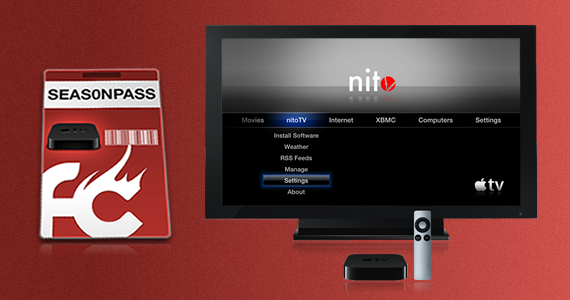
When your Apple TV restarts you will see that you installed nitoTV, which acts like Cydia on a jailbroken iPhone; nitoTV is a package management system that allows users to download packages via a user interface. From the homescreen, scroll over to nitoTV and open it. You’ll see a list of packages that you can install. Browse through some and install any that you like, but keep in mind that XBMC, Plex, Remote HD, and Rowmote are not compatible with iOS 5 yet.

Your Apple TV is now running jailbroken iOS 5. You have full access to your device along with a few new features, like AirPlay mirroring and the Wall Street Journal, that Apple threw into iOS 5. I suggest keeping a copy of Seas0nPass on your computer just in case you have to boot tethered again (you will, trust me).
What do you think of iOS 5 on the Apple TV? Are you sticking with the tethered version of iOS 5 or are you going untethered with iOS 4.3? If you’re having any issues or have any questions in general, let us know in the comments below!


